WinSxS Maid is a 47 KB Windows executable that puts everything the system's built-in tools have scattered around into a single window. It analyzes the Component Store using DISM's own figures — not Explorer's, which lies — and offers 9 cleanup methods with a clear explanation of what each one does and how much you can reclaim. No install. No runtime. Works on any Windows from 7 SP1 onward. The code and the downloads live at github.com/unmateria/WinSxS-Maid.
01 — The problem with WinSxS
C:\Windows\WinSxS is the Component Store: the vault where Windows keeps every version of every system component it has ever installed, including the ones superseded by later updates. That's what lets you uninstall updates and roll back, at the cost of the folder growing without limit.
The problem isn't just the size. It's that Explorer reports a completely inflated figure. Every file in WinSxS is a hardlink that also shows up in System32, SysWOW64 and other system paths. Explorer counts the same data once per hardlink — typically 15–30 GB on well-maintained systems, when the real footprint is half that or less.
The only source of truth is DISM /AnalyzeComponentStore, which disambiguates the hardlinks and gives real figures. WinSxS Maid runs that command and presents the result as a readable dashboard instead of a wall of text.
The tools Windows ships with (DISM on the command line, Disk Cleanup) get the job done but give you little feedback and bury the options in different places. WinSxS Maid puts it all in one window.
02 — Analyzing the store
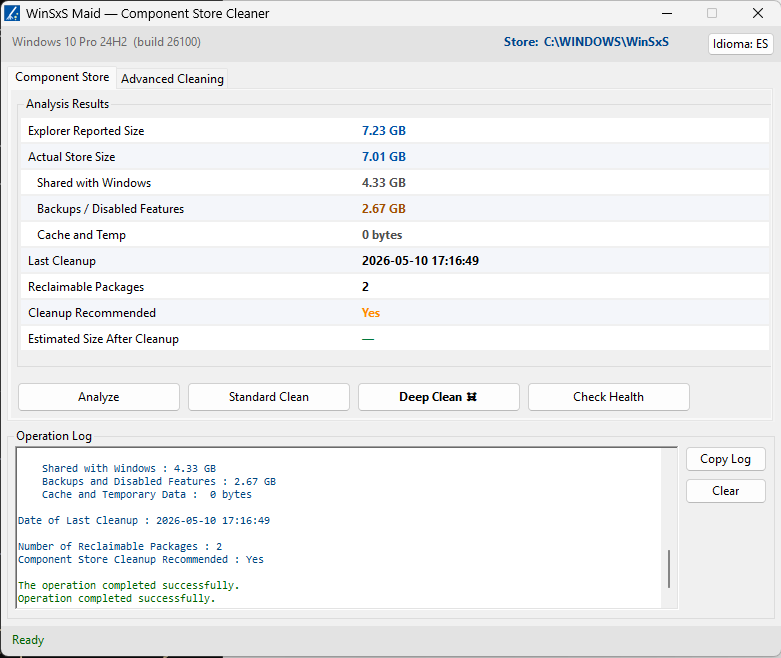
The Analyze button on the first tab runs DISM /Online /Cleanup-Image /AnalyzeComponentStore and parses the output into a table with all the metrics that matter:
- Explorer Reported Size — what Explorer sees (inflated by hardlinks)
- Actual Store Size — the real footprint on disk
- Shared with Windows — files also referenced by the running system
- Backups / Disabled Features — superseded components; the main cleanup target
- Cache and Temp — transient data from pending operations
- Last Cleanup — when DISM last ran a cleanup on this machine
- Reclaimable Packages — number of packages that can be removed right now
- Cleanup Recommended — DISM's own recommendation
- Estimated Size After Cleanup — a heuristic projection of the resulting size
This operation requires Windows 8.1 or later because /AnalyzeComponentStore didn't exist in Windows 7/8. The button disables itself automatically, with an explanatory note, on older systems.
03 — Standard and deep cleaning
The Component Store tab has three cleanup operations besides the analysis:
Standard Clean runs DISM /Online /Cleanup-Image /StartComponentCleanup. It removes the backups of superseded updates while keeping the ability to uninstall recent ones. Safe and reversible — the most recent updates stay uninstallable. Typical savings on a system that hasn't been cleaned in months: 2–8 GB. When it's done, the app re-runs Analyze automatically so you see the new numbers without having to do anything.
Deep Clean ☠ adds the /ResetBase flag to the previous command. It does the same as Standard Clean but also removes the ability to uninstall Windows updates. Permanent and irreversible. In exchange, it reclaims everything Standard Clean leaves behind.
To prevent accidents, Deep Clean has a confirmation dialog with a red header that forces you to type YES (or SÍ in Spanish) before the button enables. It's deliberate friction, not a UI bug.
Check Health runs DISM /Online /Cleanup-Image /CheckHealth: a read-only scan that checks for corruption in the store. It doesn't fix anything — if it finds problems, you need to move on to ScanHealth or RestoreHealth from a regular console.
04 — Advanced methods
The Advanced Cleaning tab adds nine more techniques, each with its own Run button or selectable for batch execution with Run Selected:
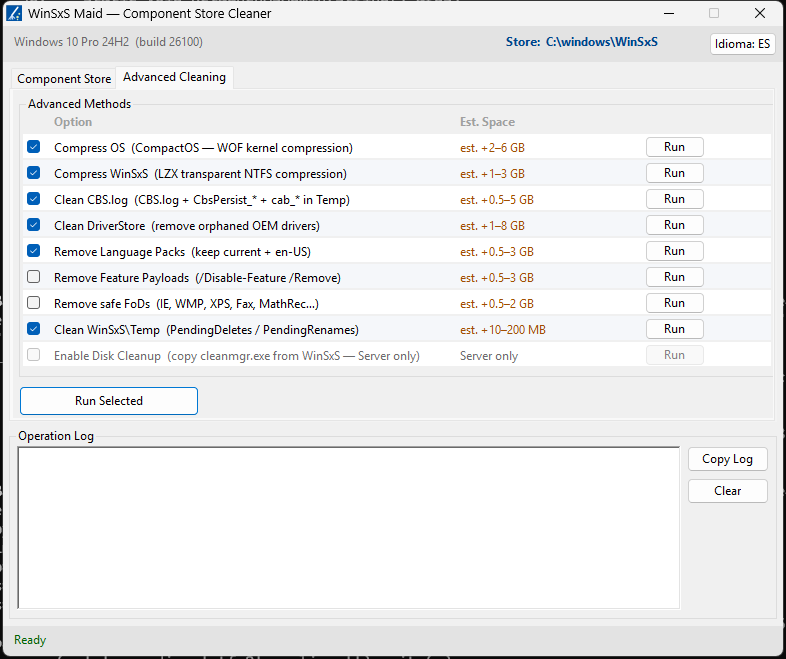
1 — Compress OS (CompactOS). Enables kernel-level WOF compression across all Windows system files. Decompression is transparent to applications — the kernel does it on the fly with minimal impact on modern SSDs. Estimated savings: 2–6 GB. Reversible.
2 — Compress WinSxS (LZX). Applies NTFS LZX compression to every file in the WinSxS folder. Same as CompactOS: transparent to the operating system. Estimated savings: 1–3 GB. Reversible.
3 — Clean CBS.log. Stops the TrustedInstaller service, deletes CBS.log, CbsPersist_*.log and the cab_* files in Temp. These are the Windows Update and servicing logs — they can grow several GB on systems with a long update history. Completely safe to delete. Estimated savings: 0.5–5 GB.
4 — DriverStore Cleanup. Lists every third-party OEM driver with pnputil /enum-drivers, cross-references them against disconnected devices to find orphaned drivers, and removes them with /delete-driver /uninstall. On systems with a long hardware history this can be the most effective one. Estimated savings: 1–8 GB. Not easily reversible.
5 — Remove Language Packs. Lists the language packs installed via DISM and removes any that aren't the active UI language or English (en-US). Useful on systems where several languages got installed during setup but only one is actually used. Estimated savings: 0.5–3 GB.
6 — Remove Feature Payloads. Finds Windows features in "Disabled" state and strips their install payload with DISM /Disable-Feature /Remove. The feature stays listed and can be turned back on, but Windows will have to download the payload from Windows Update to do it. Estimated savings: 0.5–3 GB.
7 — Remove Safe FoDs. Removes a curated list of Features on Demand that are safe to delete on most systems: Windows Hello Face, legacy Windows Media Player, Internet Explorer, Math Input Panel, Fax & Scan, XPS Viewer and Mail/Calendar sync. All reinstallable from Settings → Optional Features. Estimated savings: 0.5–2 GB.
8 — Clean WinSxS\Temp. Stops Windows Update, deletes the files in WinSxS\Temp\PendingDeletes\ and PendingRenames\, and restarts the service. These are staging files for pending component operations. Low impact but completely safe. Estimated savings: 10–200 MB.
9 — Enable Disk Cleanup (Windows Server only). On Server editions, cleanmgr.exe isn't installed by default but it's sitting inside WinSxS waiting. This operation locates it and copies it to System32 without needing to install the Desktop Experience package. The button disables itself automatically if cleanmgr is already present (on desktop editions, where it ships by default).
05 — What it does NOT do (and why)
There are techniques floating around the internet for shrinking WinSxS that are deliberately excluded:
- Replacing WinSxS with a symlink/junction: a guaranteed BSOD. WinSxS uses hardlinks; a junction breaks the linking model at the NTFS level.
- Deleting
.muifiles by hand: SFC flags them as corrupt and Windows Update tries to restore them in an infinite loop. - NTLite / MSMG Toolkit on a live install: these tools are designed for offline image editing. Running them against a booted Windows breaks Windows Update and SFC.
06 — Building from source
To build it, all you need is Windows with .NET 4.0 — nothing else to install:
git clone https://github.com/unmateria/WinSxS-Maid.git
cd WinSxS-Maid
.\build.ps1
The build script uses C:\Windows\Microsoft.NET\Framework\v4.0.30319\csc.exe — the C# compiler that ships with .NET 4.0 on every Windows since 7 SP1. No Visual Studio, no MSBuild, no NuGet. One command line produces the final 47 KB .exe.
The whole application lives in a single file (WinSxsMaid.cs, ~1,300 lines) plus the UAC manifest (app.manifest) that tells Windows it needs administrator elevation. That's the entire project.
Download WinSxsMaid.exe — v1.0.1 · 47 KB · Windows x86/x64 · .NET 4.0 · no installation
Download source code (zip) — WinSxsMaid.cs + app.manifest + build.ps1 + docs · 28 KB
github.com/unmateria/WinSxS-Maid — repository, releases and changelog