Microsoft Access is one of those tools almost nobody will defend out loud, and yet half of Spain runs on it quietly: warehouse managers, small-business bookkeeping, dental clinic appointment systems, workshop inventory cards. It works, it's fast, it lives in a single .accdb file you copy onto a USB stick and that's it. The problem is that to do anything moderately advanced you need to know VBA, SQL, form properties, events, controls… hours and hours of fighting it. MCP-Access is an MCP server that connects Claude Code (or Cursor, or Windsurf) directly to Access and lets the AI model create entire databases, forms, tables, queries, reports and VBA code just by talking to it in natural language. The project lives at github.com/unmateria/MCP-Access.
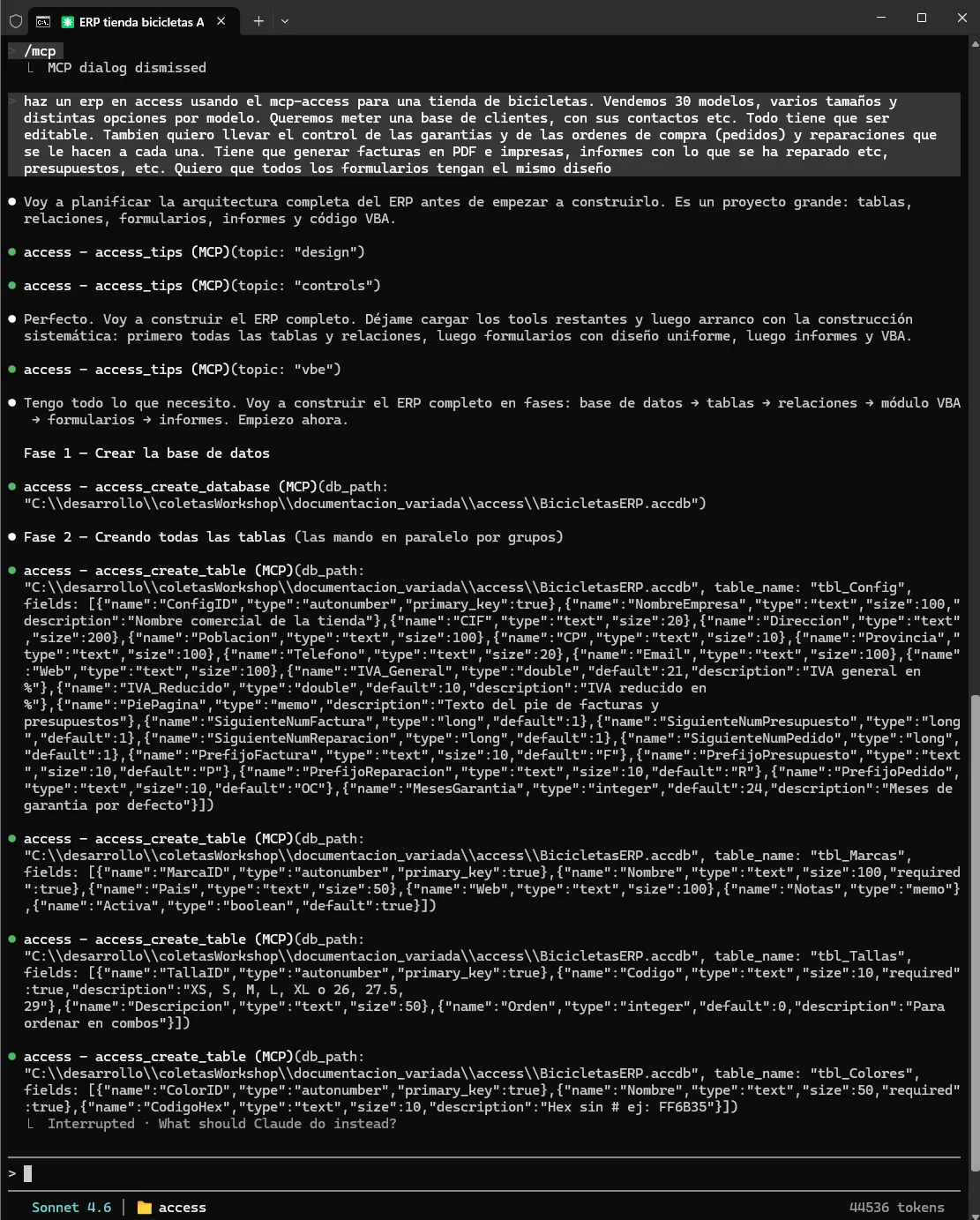
access_create_database, access_create_table…) and populates the .accdb on the fly.A heads-up before we go on. This isn't an academic project or a demo. It's a personal MCP I use every day to refactor and improve my own 1999 ERP — over 200,000 lines of code in an Access database that's still in production, every single day. I haven't built it in the abstract: it has grown on the fly, fighting real problems on a living database. When I hit a case it can't solve, I open an issue, and within hours — the next day at the latest — there's a new tool or a fix for it. That means two things: the 62 tools exist because they were genuinely needed, and the project moves fast. If you find it today and something's missing, come back tomorrow.
01 — The problem: Access is powerful, but its learning curve is brutal
Anyone who has tried to build their own management program in Access — a stock control for the shop, a client diary for the accounting firm, a maintenance log for the workshop — has hit the same wall. The saving data part is relatively easy: design a table, feed it information, fine so far. The presenting it part is where things start to go sideways: you have to learn to build forms, configure controls, bind them to the table. And the doing things with it part — computing a total, validating a field, exporting a delivery note to PDF, marking an invoice as paid — demands writing VBA code, a 90s language with its own mythology and very little modern documentation.
The result is that most people who try to build their own Access database end up in one of three places: paying a programmer to do it for them, abandoning the project, or living with a contraption that almost works but that nobody dares touch. And that's a shame, because Access is brutally capable for running the day-to-day of a 1-to-10-person business — more than enough to run an entire company without paying monthly SaaS fees or depending on someone else's servers.
What changes with an AI assistant connected over MCP is that the barrier to entry stops being technical and becomes conceptual. You no longer need to know what a QueryDef is, how to write a DoCmd.OpenForm, or the difference between a recordsource and a rowsource. You just need to know what you want: «a screen to enter customers with their tax ID, address and phone number», «a list of pending invoices with a button to mark them as paid», «a monthly sales report by category». Claude translates that into whatever technical operation is needed and MCP-Access executes it on the .accdb file directly.
02 — What an MCP is, and why it changes the rules
MCP stands for Model Context Protocol, a standard published by Anthropic (the company behind Claude) so AI assistants can "talk" to external programs. The idea is very simple: instead of you asking the AI «please write me a VBA code to do X» and then copying and pasting that code into Access — with all the errors that entails — the AI has a direct communication channel to an MCP server, a program that runs on your computer and knows how to do specific things. The assistant calls those tools and the server acts on the real system.
An MCP is, in practice, a bridge between natural language and a specific tool. There are MCPs for GitHub, for PostgreSQL databases, for Figma, for Excel, for remote servers over SSH. Each one exposes a set of tools — well-defined functions — that the AI can invoke whenever it sees fit. The AI doesn't see your database: it sees a menu of tools like «access_list_objects», «access_create_table» or «access_run_vba». When you ask for something, the AI decides which tools to combine and in what order.
MCP-Access is one specific implementation: the one that connects to Microsoft Access. What makes it special is how deep it goes. Most MCPs are thin — they expose three or four basic operations. This one exposes 62 distinct tools, covering practically everything you can do with Access from the visual editor and from the VBA editor. That means it doesn't run out of steam after the first couple of questions: there's enough room to build complete applications, not just demos.
03 — What MCP-Access lets you do
The 62 tools are grouped into blocks covering every functional area of Access:
- Whole databases: create a new, empty
.accdbfile, open an existing one, compact and repair it when it bloats, close it cleanly. - Tables: create them with their fields and types, add or remove columns, define primary keys and indexes, list the structure.
- Relationships: link tables together (a customer has many orders, an order has many lines), with or without cascading delete.
- SQL queries: run
SELECT,INSERT,UPDATE,DELETE, launch saved queries, create new queries, execute several statements at once. - Forms and reports: build them from scratch, add fields, buttons, list boxes, combo boxes, labels; change visual properties; bind them to a table or a query as the data source.
- VBA code: read it, write it, modify it line by line, search text across all modules at once, compile it and flag errors.
- Data: import and export between Access and Excel or CSV, generate PDF reports.
- Linked tables: when the database isn't standalone but connected to SQL Server or another engine, manage those links.
- Screenshots: Claude can ask Access to open a form and send it a screenshot to see what it looks like, click on specific spots and type text. It closes the visual loop.
The important detail is that these tools are specialized, not a generic «run this code and pray». Each one knows what it does, validates its parameters, returns understandable errors, and applies safety measures — for example, destructive operations like deleting an object require an explicit confirm=true parameter, and the VBA editor runs a structural check after every change so it never leaves a module broken.
04 — Step-by-step installation
The server is written in Python and only works on Windows, because it depends on COM automation — the API Microsoft exposes so other programs can control Office. You need:
- Microsoft Access 2010 or later. Any modern Access works, including the Office 365 one.
- Python 3.9 or later. If you don't have it installed, grab the installer from python.org and, during setup, tick the «Add Python to PATH» box — that's the only one that matters.
- Claude Code (or Cursor, or Windsurf — any editor that supports MCP).
Once Python is installed, open PowerShell and run:
pip install mcp pywin32
That pair of packages is the whole dependency. mcp is the protocol's SDK, pywin32 is what lets Python speak COM with Access.
Then clone the repository into a folder on your disk — I keep mine at C:\herramientas\MCP-Access, but the path doesn't matter, the only thing that matters is remembering it:
git clone https://github.com/unmateria/MCP-Access.git C:\herramientas\MCP-Access
If you don't have git, download the ZIP from the repo's GitHub page and unzip it wherever you like.
The last preparation step is telling Access to let its VBA code be poked at from the outside. For security reasons, Access ships with that door closed by default. You have to open it manually:
- Open Access (any database works, or a blank one).
- Menu File → Options → Trust Center → Trust Center Settings → Macro Settings.
- Tick the «Trust access to the VBA project object model» box.
- Accept and close Access.
This is a one-time setting, saved in the user profile. The repo also includes an enable_vba_trust.ps1 script that does it from the command line, if you'd rather not hunt for the option by hand.
05 — Connecting the MCP to Claude Code
Once everything is installed, register the server in Claude Code with a single command. Open PowerShell in your project folder (or in any folder if you want it global) and type:
claude mcp add access -- python C:\herramientas\MCP-Access\access_mcp_server.py
Adjust the path to wherever you cloned the repo. That registers the MCP globally, available in any Claude Code session. If you'd rather it only be active in one specific project — because you only work with Access in certain folders and don't want the server loaded all the time — use the project-scope variant, which creates an .mcp.json file in the current directory:
claude mcp add --scope project access -- python C:\herramientas\MCP-Access\access_mcp_server.py
To check it's properly connected, open Claude Code in that folder and type something like «list the Access MCP's tools». If everything's fine, you should see the menu of 62 tools starting with access_. If they don't show up, the most common causes are a wrong path to the script, a missing pip package, or Python not being on the PATH.
06 — Building a database from scratch
Here's the fun part. With the MCP running, you open Claude Code in any folder and talk to it like you'd talk to a coworker — in plain terms, no jargon at all. For example, to start a database to manage a club's members:
Make me a database to keep track of my club's members.
I want to record first name, last name, email, phone number,
the date they signed up, whether they've paid their membership fee,
and a place to write notes.
Save it on my desktop.
Claude takes care of the rest: it decides the right type for each field on its own (text, date, yes/no, and so on), adds an automatic ID for each member, creates the .accdb file, and tells you where it left it. Double-click to open it and there's the table, ready for data.
The natural next step is asking for a screen to enter members without having to look at the raw table:
Make me a nice-looking window to enter new members, with a button
to save and another to close.
And that's it. Claude builds the form, adds the fields, the buttons, writes the VBA code needed to make the buttons work, and lets you know when it's ready. Without you having touched a line of VBA.
07 — Building a mini-ERP by talking to Claude
The above is the easy version. What really shows off its potential is building a complete application. Imagine you run a microbusiness — a workshop, a small online shop, an academy — and you want your own little Access system to manage customers, products, orders and invoices. In traditional programming, that's several weeks. With MCP-Access it's a conversation over a couple of afternoons. A session might start like this:
I want to build a little program for my bike shop.
I need to track my customers, the bikes and spare parts
I sell, and the orders they place with me.
Each order belongs to one customer and can have several bikes or
spare parts in it, with their quantity. And orders go through
"draft", "shipped" and "paid".
Set up the database however makes the most sense and save it on my desktop.
In a few seconds you have the skeleton: four tables (customers, products, orders and order lines) properly related to each other, with their keys and their cascading deletes where needed. You didn't have to decide any of that — Claude infers it from your plain-language description. From there you keep asking for it piece by piece:
- «Make me a continuous form for products so I can view and edit the catalog».
- «Make me a master/detail form for orders: header with customer and date, a subform with the lines, and a calculated total at the bottom».
- «When the user adds a line to the order, copy the product's price into the precio_aplicado column and recalculate the order total».
- «Make me a query of products with stock below 5 units».
- «Make me an invoice report with the logo at the top, the customer's details, the list of lines and the total. Make it printable from the order form with a button».
- «When an order moves to "paid" status, automatically deduct the stock of the products».
Each of those sentences triggers a sequence of MCP tool calls — some create controls, others write VBA, others create queries, others reports. And since Claude has the screenshot tool among its arsenal (access_screenshot), if something doesn't come out the way you expected, you just tell it «no, move the button to the right and make it bigger» and it looks at how things stand, works out the coordinates and fixes it.
It pays to iterate in small steps: ask for one thing, open Access, check it works, and only then move on. Not out of distrust, but because you keep refining what you want as you see results — and because if something goes wrong it's much easier to pinpoint where.
08 — Editing an existing Access database
The other classic scenario is inheriting a legacy database — that Access some friend's cousin threw together in 2014 that's still holding up half the business — and wanting to modify it without breaking anything. This is where MCP-Access really shines, because it has tools built exactly for that:
access_list_objectslists everything in the file — tables, forms, reports, modules, queries, macros — to get a sense of the size and complexity.access_export_structuregenerates a Markdown index of the whole structure: ideal for Claude to build a mental map before touching anything.access_find_usagessearches for a field, function or variable name across the entire file — VBA code, query SQL, control properties. To know what you'd break if you renamed something.access_find_definitionis the classic "go to definition": give it the name of a function or variable and it tells you exactly which module and line it's declared on.access_vbe_patch_procallows surgical changes to a VBA function — finding a specific chunk and replacing it, instead of rewriting the whole function.
The typical flow is: you ask Claude to summarize the database, explain what you want to change («add a "comercial_id" field to the pedidos table and put a column on the orders form to pick it from a combo box off the empleados table»), and it navigates the objects, reads the existing code, finds the spots that need touching, and applies the changes. If something fails, the compilation tools (access_compile_vba) catch the errors with their exact line and Claude fixes them.
A key tool for old databases is access_decompile_compact. When an .accdb has been edited for years, it accumulates compiled junk — intermediate code (p-code) that no longer matches the current source. The file keeps growing and starts throwing weird errors when compiling. This tool runs a maintenance operation that traditionally only advanced Access administrators knew about: it fires off a decompile + compact that flushes the junk and leaves the database clean. Reductions of 60–70% in file size are common.
09 — Porting an old Access app to .NET or the web
There's a less obvious but equally powerful use case: using MCP-Access not to stay in Access, but to get out of it. Anyone who has tried migrating an old Access application to .NET, to Java, to a modern web app or to an Electron desktop app knows the real problem isn't writing the new code — it's understanding the old one. There are tens of thousands of lines of VBA written over twenty years by people who are long gone, forms with events scattered everywhere, saved SQL queries with weird JOINs, business logic spread across macros, queries and modules. Rewriting it blind is suicide.
MCP-Access turns Access into a data source another AI can read. The access_export_structure, access_get_code, access_find_usages and access_find_definition tools let the model navigate the whole database, read the VBA module by module, map which query uses which table, which form calls which function, and build an exhaustive inventory of the business logic. And since Claude understands VBA perfectly, it can translate it into something else.
A typical migration flow looks something like this:
- Ask Claude for a complete inventory: tables, relationships, forms, reports, saved queries, VBA modules, what function calls what. Have it dump it into Markdown.
- Ask it to extract the business logic function by function: what it does, what rules it applies, what tables it touches. That documentation is gold — probably the first time in years that information has been written down anywhere.
- Ask it to generate the equivalent in the target stack. «This VBA function that calculates the volume discount, give me the C# equivalent for a REST API». «This orders form, build me the React with Tailwind equivalent». «These Access tables, give me the CREATE TABLE statements for PostgreSQL preserving the types».
- While the migration progresses, keep the Access database alive in production and use it as a behavior oracle: whenever you're unsure the new logic is correct, run the query or the function on the old Access through the MCP and compare results.
The beautiful part is that this radically changes the economics of the refactor. What used to be «hire a consultancy for six months so they understand your system before touching anything» becomes «a couple of weeks reading through it conversationally with Claude before deciding what to rewrite and in what order». And since you have the original database as a reference always available, you can migrate module by module instead of doing a Big Bang. The question stops being «can we afford to rewrite it?» and becomes «which parts are worth rewriting, and which do we leave in Access for another ten years?».
10 — Best practices and known gotchas
Things worth keeping in mind:
- Close Access before asking Claude to open the file. If you have the
.accdbopen manually and Claude tries to open it too, best case it opens in your own instance, worst case it throws a lock error. The rule is: either you or the MCP, never both at once. - Back up before big changes. An
.accdbis a single file. Copying it is trivial. And although the MCP is fairly safe — destructive operations ask for confirmation — a badly phrased natural-language request can cause real damage. Before asking it to «rename every field in English», copy the file. - Literal YAML in forms and queries. When Claude sends the MCP a text with special characters — quotes, ampersands, symbols — the MCP handles them correctly, but sometimes the model over-escapes them. If a query comes out looking odd, tell it to review it and rewrite it without the extra escaping.
- Complicated ActiveX controls, better done by hand. Unusual ActiveX controls (maps, legacy OCX, proprietary controls) are still more reliable if you insert them yourself from the ribbon and then ask the MCP to configure them. Creating an ActiveX control from scratch over COM is fragile.
11 — Who this is for
This is aimed especially at three kinds of people:
- The freelancer or SME manager who wants their own custom little program — stock control, service scheduling, customer records, whatever — but doesn't want to pay monthly SaaS fees or learn to program from zero. With a couple of afternoons they have their little working system, on their own disk, with no external dependencies.
- The office worker who has inherited an old Access database from a colleague who left, and needs to modify it without daring to touch the VBA. With MCP-Access they can ask Claude to read, understand and modify the database without breaking it, and pick up along the way how it's put together thanks to the model's explanations.
- The programmer who already knows Access and wants a tool to take the boring work off their plate — renaming refactors, generating repetitive CRUD forms, migrating fields, exporting structures to documentation. Here MCP-Access is basically an accelerator.
- The person who has to get the company off Access and port everything to .NET, to Java, to a modern web app. The expensive part of that migration is never writing the new code — it's reading and understanding the old one. MCP-Access turns the database into something Claude can inspect, document and translate, module by module, without having to rewrite it all blind.
What it's not: a magic solution that replaces thinking. You still have to design the data model well, you still have to verify that what it produces works, you still have to understand — at least broadly — what a primary key is or why a cascading-delete relationship can be dangerous. But the technical friction between having an idea and having a working application drops from weeks to hours. And for anyone who has spent years thinking «if only I knew how to program, I'd build…», that's the difference between doing it and not doing it.
The project is active, with frequent commits and a detailed changelog. Just what was missing for Microsoft Access — that tool so loved and so maligned — to enter the age of conversational programming. github.com/unmateria/MCP-Access.
Special thanks to TvanStiphout-Home and CaptainStormfield, who volunteered as beta testers from the very start, reported multiple bugs and helped fix them. Without them the project would be a lot rougher around the edges.