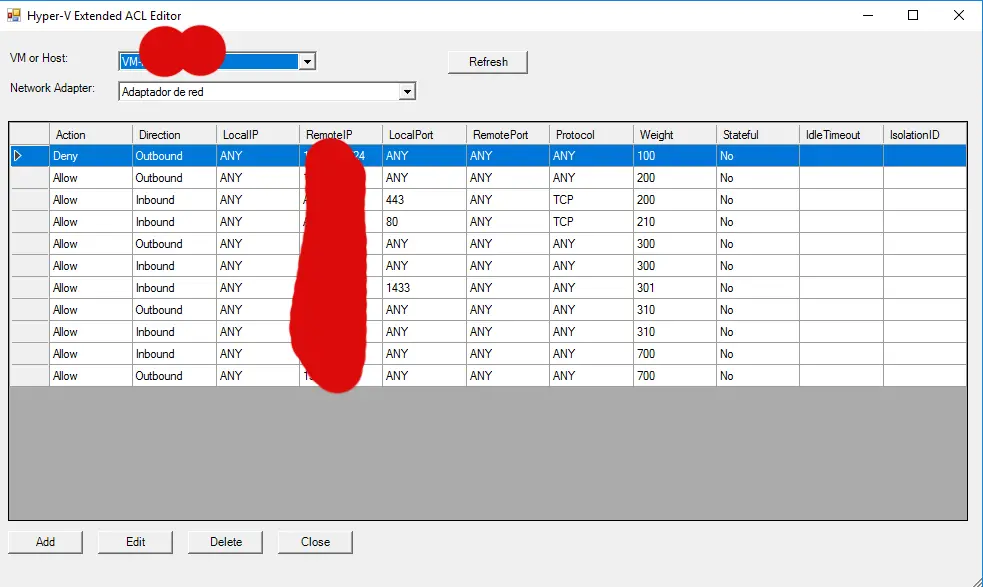
Hyper-V has a great layer 2/3 firewall right at the virtual adapter level — the so-called Extended ACL rules — but Microsoft never bothered giving it a graphical interface. If you want to block an IP on a VM, you're stuck learning four PowerShell cmdlets and working from notes. This script is the opposite: a single .ps1 file that opens a WinForms window with the rule list, add/edit/delete buttons and a combo box to switch VMs. The code is on GitHub: github.com/unmateria/HyperV-ACL-editor.
01 — The problem: Hyper-V has a firewall, but no UI
Hyper-V, the hypervisor that ships out of the box with Windows Server, lets you filter network traffic directly on each VM's virtual adapter. In other words: instead of configuring the firewall inside the guest OS (which requires access to the VM, an agent, a GPO, whatever), the rules live on the host. The VM has no idea it's being filtered — it's as if the network cable had a physical firewall right before it reaches the card. This is very useful for servers you don't control directly, for isolating VMs from each other on the same host, or for blocking specific IPs without touching anything inside the guest.
The mechanism is called Extended ACL (extended Access Control List) and has been available since Windows Server 2016. Each rule is managed with three PowerShell cmdlets: Get-VMNetworkAdapterExtendedAcl, Add-VMNetworkAdapterExtendedAcl and Remove-VMNetworkAdapterExtendedAcl. They work, but they're verbose, and the console output for a list of fifteen rules is practically unreadable — each rule dumps twenty properties in one block.
The most galling part is that the Hyper-V Manager console — the GUI that ships with Windows Server for managing VMs — doesn't have a single button for this. Extended ACLs exist, they're powerful, and they're completely invisible to the average administrator. The only one who ever sees them is the one who already knows them by heart.
This project's script fixes that with a single ~500-line .ps1 file that builds a Windows Forms window — .NET's classic UI API, reachable from PowerShell with nothing extra to install — showing the rule list in a table with buttons to manage it. No installer, no DLLs, no services. Double-click it (from an elevated session) and off you go.
02 — What an Extended ACL actually is
An Extended ACL rule in Hyper-V is an entry that says: «on this virtual adapter, for traffic matching these conditions, do this». The conditions are the classic layer 3/4 combination: direction (inbound/outbound), local and remote IP, local and remote port, and protocol. The action is Allow or Deny. It's basically a packet firewall, much like iptables on Linux but tied to a specific VM's virtual NIC.
Each rule also has three less obvious properties:
- Weight: an integer. The higher it is, the more priority it gets. When two rules contradict each other, the one with the higher weight wins. This lets you write things like «deny everything from the Internet (weight=100), but allow my home IP (weight=200)».
- Stateful: when enabled, the rule only applies to the first packet of a connection, and reply packets are allowed automatically. This is what makes TCP work without writing separate inbound and outbound rules. It only makes sense for TCP — UDP/ICMP traffic has no «connection» to attach to.
- IdleSessionTimeout: for stateful rules, how many seconds a connection can sit idle before its state gets dropped. If not specified, it uses the system default.
- IsolationID: an optional identifier for grouping rules that belong to the same isolated logical network. For normal use on a small host, it's left at 0 and ignored.
Rules can be applied to two different places: an adapter on a specific VM, or an adapter on the host's own management OS (what Hyper-V calls the Management OS: the physical server's operating system acting as the host). That's why the script's first combo box offers «Management OS» as an option alongside every individual VM.
03 — Anatomy of the script
The project is a single file, ACLEditor.ps1. The header marks the script as mandatorily elevated and loads the Windows Forms assemblies — .NET's classic UI API, present on any Windows since XP, reachable from PowerShell with nothing to install because PowerShell runs on the same .NET runtime.
#Requires -RunAsAdministrator

# Load the Windows Forms assemblies
Add-Type -AssemblyName System.Windows.Forms
Add-Type -AssemblyName System.Drawing

# Check that the Hyper-V module is available
try {
    Import-Module Hyper-V -ErrorAction Stop
} catch {
    [System.Windows.Forms.MessageBox]::Show(
        "Hyper-V module not found. Please install the Hyper-V role.",
        "Error", [System.Windows.Forms.MessageBoxButtons]::OK,
        [System.Windows.Forms.MessageBoxIcon]::Error
    )
    exit
}
The #Requires -RunAsAdministrator directive is native to PowerShell: if the script is launched from a non-elevated session, PowerShell refuses to run it and shows a clear error instead of failing confusingly at the first Hyper-V cmdlet that needs permissions. All of Hyper-V's management requires administrator rights, so this saves time that would otherwise go into debugging permission errors.
The Hyper-V module is what provides the Get-VM, Get-VMNetworkAdapter, Get-VMNetworkAdapterExtendedAcl cmdlets, and so on. It comes preinstalled on any Windows Server with the Hyper-V role enabled. If it's missing, we show a MessageBox and exit — friendlier than crashing on the very first call.
The rest of the file is organized into three clear blocks:
- Function
Show-ACLEditor: defines the modal dialog for adding/editing a rule. It's called both from the Add button (no parameters) and from Edit (passing the rule to edit as the-EditRuleparameter). - Definition of the main window: VM combo box, adapter combo box, refresh button, rule grid and four buttons at the bottom.
- Loading functions (
Load-VMList,Load-AdapterList,Load-ACLRules) and event handlers for the buttons and combo boxes.
04 — The main window
Windows Forms in PowerShell is fully positional: controls are created one by one, given a position and size in pixels by hand, and added to the parent form with $form.Controls.Add(...). No layout managers, no XAML, no binding. It's code straight out of the 90s, but it has one crucial virtue: it works on literally any Windows machine with zero dependencies.
$mainForm = New-Object System.Windows.Forms.Form
$mainForm.Text = "Hyper-V Extended ACL Editor"
$mainForm.Size = New-Object System.Drawing.Size(1000, 600)
$mainForm.StartPosition = "CenterScreen"

# VM selector
$lblVM = New-Object System.Windows.Forms.Label
$lblVM.Location = New-Object System.Drawing.Point(10, 20)
$lblVM.Size = New-Object System.Drawing.Size(100, 20)
$lblVM.Text = "VM or Host:"
$mainForm.Controls.Add($lblVM)

$cmbVM = New-Object System.Windows.Forms.ComboBox
$cmbVM.Location = New-Object System.Drawing.Point(120, 20)
$cmbVM.Size = New-Object System.Drawing.Size(200, 20)
$cmbVM.DropDownStyle = "DropDownList"
$cmbVM.DisplayMember = "Name"   # Show the .Name property of each item
$mainForm.Controls.Add($cmbVM)
The interesting detail is DisplayMember = "Name": the combo box gets full objects added to it (instances of VirtualMachine or VMNetworkAdapter), not strings. But Windows Forms only displays each one's Name property on screen. When we later read $cmbVM.SelectedItem we get back the entire object — with all its methods and properties —, not a piece of text. That saves having to keep a separate dictionary to map «selected name» to «object».
The central control is a DataGridView: Windows Forms' grid, equivalent to WPF's DataGrid or Qt's QTableView. We tell it to auto-fill the width, select whole rows, allow only one row selected at a time, and be read-only (editing always happens through the modal dialog, never in place):
$grid = New-Object System.Windows.Forms.DataGridView
$grid.Location = New-Object System.Drawing.Point(10, 90)
$grid.Size = New-Object System.Drawing.Size(960, 400)
$grid.AutoSizeColumnsMode = [System.Windows.Forms.DataGridViewAutoSizeColumnsMode]::Fill
$grid.SelectionMode = [System.Windows.Forms.DataGridViewSelectionMode]::FullRowSelect
$grid.MultiSelect = $false
$grid.ReadOnly = $true
$grid.AllowUserToAddRows = $false
$grid.AllowUserToDeleteRows = $false
$mainForm.Controls.Add($grid)
05 — Loading VMs and adapters
The first combo box is filled with every VM on the host, plus one synthetic entry at the top to represent the management OS. Since VMs are real objects returned by Get-VM, and «Management OS» isn't one, we fake it with a PSCustomObject that has a Name property — so the combo box can display it — and a flag property, IsManagementOS, that we'll use later to tell it apart:
function Load-VMList {
    $cmbVM.Items.Clear()

    # First entry: management OS (synthetic object)
    $mgmt = [PSCustomObject]@{ Name = "Management OS"; IsManagementOS = $true }
    $cmbVM.Items.Add($mgmt) | Out-Null

    # Remaining entries: all VMs sorted by name
    $vms = Get-VM | Sort-Object Name
    foreach ($vm in $vms) {
        $cmbVM.Items.Add($vm) | Out-Null
    }

    if ($cmbVM.Items.Count -gt 0) {
        $cmbVM.SelectedIndex = 0
    }
}
The | Out-Null at the end of every Add call is a typical PowerShell idiom: the Items.Add method returns the index of the added item, and if we don't discard it, PowerShell will stash it in the implicit pipeline output and it will show up as a return value of the function. Piping to Out-Null kills it on the spot.
The second combo box, the adapters one, depends on the first. Every time the VM selection changes, this combo box needs to be cleared and reloaded with the adapters of that specific VM — or of the management console in the special case:
function Load-AdapterList {
    $cmbAdapter.Items.Clear()
    $selected = $cmbVM.SelectedItem

    if ($selected.IsManagementOS) {
        # The -ManagementOS switch asks for the host's own virtual adapters
        $adapters = Get-VMNetworkAdapter -ManagementOS | Sort-Object Name
    } else {
        $adapters = Get-VMNetworkAdapter -VM $selected | Sort-Object Name
    }

    foreach ($adapter in $adapters) {
        $cmbAdapter.Items.Add($adapter) | Out-Null
    }

    if ($cmbAdapter.Items.Count -gt 0) {
        $cmbAdapter.SelectedIndex = 0
    } else {
        # Placeholder so the combo box doesn't look empty
        $placeholder = [PSCustomObject]@{ Name = "No adapters"; Adapter = $null }
        $cmbAdapter.Items.Add($placeholder) | Out-Null
        $cmbAdapter.SelectedIndex = 0
    }

    $script:selectedAdapter = $null
}
The $script:selectedAdapter variable uses the script: scope modifier, which in PowerShell makes a variable visible from every function in the file. It's the most sensible equivalent of a global variable scoped to the script — without polluting the global scope of the user's PowerShell session.
06 — Reading the adapter's rules
When the user selects an adapter, we need to ask Hyper-V for all of its Extended ACL rules and dump them into the grid. Get-VMNetworkAdapterExtendedAcl returns one object per rule, with all the properties we've already seen. We sort them by Weight so they always show up in priority order:
function Load-ACLRules {
    $adapter = $cmbAdapter.SelectedItem

    # The "No adapters" placeholder isn't a real adapter, discard it
    if ($adapter -eq $null -or -not ($adapter -is [Microsoft.HyperV.PowerShell.VMNetworkAdapterBase])) {
        $grid.DataSource = $null
        $script:selectedAdapter = $null
        return
    }
    $script:selectedAdapter = $adapter

    try {
        $rules = Get-VMNetworkAdapterExtendedAcl -VMNetworkAdapter $adapter -ErrorAction Stop |
                 Sort-Object Weight
    } catch {
        [System.Windows.Forms.MessageBox]::Show(
            "Failed to load ACL rules: $($_.Exception.Message)",
            "Error", [System.Windows.Forms.MessageBoxButtons]::OK,
            [System.Windows.Forms.MessageBoxIcon]::Error
        )
        $rules = @()
    }
    ...
}
The DataGridView works better with a System.Data.DataTable than with a list of PowerShell objects. The practical reason is that with a DataTable every row has typed columns with explicit names, which lets us have a hidden column that holds the rule's original object. That way, when the user selects a row and clicks Edit, we can retrieve the original Hyper-V object without having to look it up again:
$table = New-Object System.Data.DataTable
$table.Columns.Add("Action", [string]) | Out-Null
$table.Columns.Add("Direction", [string]) | Out-Null
$table.Columns.Add("LocalIP", [string]) | Out-Null
$table.Columns.Add("RemoteIP", [string]) | Out-Null
$table.Columns.Add("LocalPort", [string]) | Out-Null
$table.Columns.Add("RemotePort", [string]) | Out-Null
$table.Columns.Add("Protocol", [string]) | Out-Null
$table.Columns.Add("Weight", [string]) | Out-Null
$table.Columns.Add("Stateful", [string]) | Out-Null
$table.Columns.Add("IdleTimeout", [string]) | Out-Null
$table.Columns.Add("IsolationID", [string]) | Out-Null
$table.Columns.Add("Rule", [object]) | Out-Null   # HIDDEN column holding the original object

foreach ($rule in $rules) {
    $row = $table.NewRow()
    $row["Action"]      = $rule.Action
    $row["Direction"]   = $rule.Direction
    $row["LocalIP"]     = if ($rule.LocalIPAddress)  { $rule.LocalIPAddress }  else { "" }
    $row["RemoteIP"]    = if ($rule.RemoteIPAddress) { $rule.RemoteIPAddress } else { "" }
    $row["LocalPort"]   = if ($rule.LocalPort)       { $rule.LocalPort }       else { "" }
    $row["RemotePort"]  = if ($rule.RemotePort)      { $rule.RemotePort }      else { "" }
    $row["Protocol"]    = if ($rule.Protocol)        { $rule.Protocol }        else { "" }
    $row["Weight"]      = $rule.Weight
    $row["Stateful"]    = if ($rule.Stateful) { "Yes" } else { "No" }
    $row["IdleTimeout"] = if ($rule.IdleSessionTimeout) { $rule.IdleSessionTimeout } else { "" }
    $row["IsolationID"] = if ($rule.IsolationID)        { $rule.IsolationID }        else { "" }
    $row["Rule"]        = $rule   # <- this is where the whole object is kept
    $table.Rows.Add($row) | Out-Null
}

$grid.DataSource = $table
# Hide the "Rule" column — it's there for internal use, not for display
if ($grid.Columns.Contains("Rule")) {
    $grid.Columns["Rule"].Visible = $false
}
07 — The add/edit dialog
The Show-ACLEditor function opens a modal dialog with one field per rule property. It accepts an optional -EditRule parameter: if it's passed, the fields are filled with that rule's values and the window title changes to «Edit ACL Rule»; otherwise it keeps the default values and the title is «Add ACL Rule». The function returns a PSCustomObject with the entered values, or $null if the user cancels.
function Show-ACLEditor {
    param(
        $EditRule = $null   # Existing rule (edit mode) or $null (create mode)
    )

    $form = New-Object System.Windows.Forms.Form
    $form.Text = if ($EditRule) { "Edit ACL Rule" } else { "Add ACL Rule" }
    $form.Size = New-Object System.Drawing.Size(450, 460)
    $form.StartPosition = "CenterParent"
    $form.FormBorderStyle = "FixedDialog"   # No se puede redimensionar
    $form.MaximizeBox = $false
    $form.MinimizeBox = $false
    ...
}
The protocol field deserves a separate comment. Hyper-V accepts «TCP», «UDP» or the IP protocol number — for example «1» for ICMP. So the user doesn't have to remember that ICMP is 1, the combo box presents it as «ICMP (1)» and we translate it to «1» before returning it. And since there are countless IP protocols we don't include in the list, the combo box is DropDown instead of DropDownList — the user can type any value by hand:
$cmbProtocol = New-Object System.Windows.Forms.ComboBox
$cmbProtocol.DropDownStyle = "DropDown"   # Editable, no solo seleccionable
$cmbProtocol.Items.AddRange(@("", "TCP", "UDP", "ICMP (1)"))
...

# On return, translate the friendly label back to the real value
if ($out.Protocol -eq "ICMP (1)") {
    $out.Protocol = "1"
}
For the numeric fields we use NumericUpDown (the classic up/down arrows from old-school Windows forms). The weight field allows the full range of a signed Int32, because that's what the Hyper-V cmdlet accepts:
$numWeight = New-Object System.Windows.Forms.NumericUpDown
$numWeight.Minimum = -2147483648
$numWeight.Maximum = 2147483647
$numWeight.Value = 1
When the user closes the dialog with OK, we collect the values and build the output object. The important part: empty properties are removed with $out.PSObject.Properties.Remove(...) instead of being passed as an empty string. That's because the Add-VMNetworkAdapterExtendedAcl cmdlet treats «not specified» and «specified but empty» differently — and we want «not specified» to mean «any value», which is what gets interpreted when the whole parameter is omitted:
# Remove optional parameters that ended up empty
foreach ($key in @("LocalIPAddress","RemoteIPAddress","LocalPort","RemotePort","Protocol")) {
    if ([string]::IsNullOrEmpty($out.$key)) {
        $out.PSObject.Properties.Remove($key)
    }
}
if ($out.IdleSessionTimeout -eq $null) { $out.PSObject.Properties.Remove("IdleSessionTimeout") }
if ($out.IsolationID -eq $null)        { $out.PSObject.Properties.Remove("IsolationID") }

return $out
08 — Applying changes to the firewall
The Add handler collects the object returned by the dialog, builds a hashtable with the parameters and passes it to the cmdlet using splatting (@params). Splatting is PowerShell's idiomatic syntax for passing many parameters to a cmdlet: instead of writing forty -Param value pairs on one unreadable line, you build a hashtable and prefix it with @ instead of $ in the call:
$btnAdd.add_Click({
    if ($script:selectedAdapter -eq $null) {
        [System.Windows.Forms.MessageBox]::Show(
            "Please select a network adapter first.",
            "Error", [System.Windows.Forms.MessageBoxButtons]::OK,
            [System.Windows.Forms.MessageBoxIcon]::Error
        )
        return
    }

    $newRule = Show-ACLEditor
    if ($newRule -ne $null) {
        try {
            # Required parameters
            $params = @{
                VMNetworkAdapter = $script:selectedAdapter
                Action           = $newRule.Action
                Direction        = $newRule.Direction
                Weight           = $newRule.Weight
                Stateful         = $newRule.Stateful
            }

            # Optional parameters: only added if the rule carries them
            if ($newRule.PSObject.Properties["LocalIPAddress"])     { $params.LocalIPAddress    = $newRule.LocalIPAddress }
            if ($newRule.PSObject.Properties["RemoteIPAddress"])    { $params.RemoteIPAddress   = $newRule.RemoteIPAddress }
            if ($newRule.PSObject.Properties["LocalPort"])          { $params.LocalPort         = $newRule.LocalPort }
            if ($newRule.PSObject.Properties["RemotePort"])         { $params.RemotePort        = $newRule.RemotePort }
            if ($newRule.PSObject.Properties["Protocol"])           { $params.Protocol          = $newRule.Protocol }
            if ($newRule.PSObject.Properties["IdleSessionTimeout"]) { $params.IdleSessionTimeout= $newRule.IdleSessionTimeout }
            if ($newRule.PSObject.Properties["IsolationID"])        { $params.IsolationID       = $newRule.IsolationID }

            # Splatting: each hashtable key becomes a -Key parameter
            Add-VMNetworkAdapterExtendedAcl @params -ErrorAction Stop

            Load-ACLRules   # Refresh the grid
            [System.Windows.Forms.MessageBox]::Show("Rule added successfully.", ...)
        } catch {
            [System.Windows.Forms.MessageBox]::Show("Failed to add rule: $($_.Exception.Message)", ...)
        }
    }
})
Editing is slightly trickier because the Hyper-V cmdlets don't let you modify Extended ACL rules in place: there is no Set-VMNetworkAdapterExtendedAcl. The only way to change a rule is to delete it and create it again. The Edit handler does exactly that: it pipes $ruleObj | Remove-VMNetworkAdapterExtendedAcl and then does an Add with the new values. If the second step fails, the original rule is already gone — that's why we call Load-ACLRules in the catch branch too, so the user sees the firewall's real state instead of a stale one.
Deleting is the simplest part: it asks for confirmation with a MessageBox, and if the user says Yes, the rule object is piped to Remove-VMNetworkAdapterExtendedAcl:
$btnDelete.add_Click({
    if ($grid.SelectedRows.Count -eq 0) {
        [System.Windows.Forms.MessageBox]::Show("Please select a rule to delete.", ...)
        return
    }

    $selectedRow = $grid.SelectedRows[0]
    $ruleObj = $selectedRow.DataBoundItem["Rule"]   # Pull the object back from the hidden column

    $answer = [System.Windows.Forms.MessageBox]::Show(
        "Are you sure you want to delete the selected rule?",
        "Confirm Delete", [System.Windows.Forms.MessageBoxButtons]::YesNo,
        [System.Windows.Forms.MessageBoxIcon]::Question
    )
    if ($answer -eq "Yes") {
        try {
            $ruleObj | Remove-VMNetworkAdapterExtendedAcl -ErrorAction Stop
            Load-ACLRules
        } catch {
            [System.Windows.Forms.MessageBox]::Show("Failed to delete rule: $($_.Exception.Message)", ...)
        }
    }
})
09 — How to use it
Using it is trivial:
- Download
ACLEditor.ps1from the GitHub repository. - Copy it to a folder on the Hyper-V host (anywhere works).
- Open PowerShell as administrator.
- If it's the first time you're running an unsigned PowerShell script on that machine, adjust the execution policy for the current session:
Set-ExecutionPolicy -Scope Process -ExecutionPolicy Bypass
-Scope Processmakes the change last only as long as the current PowerShell session — the safest option, since it doesn't touch the machine's global policy. - Run the script:
.\ACLEditor.ps1
Pick the VM (or «Management OS») at the top, then the specific adapter. The grid fills itself in with the existing rules sorted by weight. Add opens the dialog blank; Edit opens it with the selected row's values; Delete asks and deletes; Refresh reloads the entire list of VMs and adapters in case you created or removed one outside the editor.
One practical note: when the grid is empty, it doesn't mean there's no traffic filtering — it means there is no Extended ACL rule applied to that adapter, and by default that means «everything allowed» (Extended ACLs are not deny-by-default). As soon as you add the first Allow rule, the default behavior switches to deny, and from then on only what's explicitly allowed gets through. This is important to keep in mind: the first rule changes the entire model. If you're about to start using Extended ACL on an adapter with live traffic, the sensible move is to add an Allow ANY rule with low weight first, and fine-tune from there.
The full code is published under an open license at github.com/unmateria/HyperV-ACL-editor. Issues and pull requests welcome.