A Windows server with RDP open to the internet survives, at best, a few hours before the first hammerers show up: automated scripts that try thousands of passwords non-stop. A decent password keeps you safe, but the attempts still flood the logs, burn CPU and put you on edge. GuardianRDP is a Windows service written in C# that watches TCP connections in real time and firewalls any IP that isn't whitelisted and touches a critical port. No database, no third-party agents, no fuss.
01 — The problem: RDP hammerers
RDP is Windows' remote desktop protocol (Remote Desktop Protocol). The standard port is 3389. If you have a Windows server with that port reachable from the internet, within hours — sometimes minutes — you'll start seeing failed login attempts in the Windows event logs, coming from IPs all over the world.
Those automated attackers are usually called hammerers or brute-forcers: scripts that try millions of username and password combinations against the RDP port non-stop, 24 hours a day. Technically it's a dictionary brute-force attack. In practice, it's constant noise in the logs, wasted CPU, and the uneasy feeling of someone banging on the door non-stop.
On Linux there's fail2ban, a classic tool that reads the system logs and blocks IPs that cross a failure threshold. Windows has nothing equivalent out of the box. The alternatives tend to be either complex (installing a third-party agent, setting up Group Policy rules, paying for a service) or manual (adding IPs to the firewall by hand once you've had enough).
The reality is that most of these attackers were never going to get in even if you left them running. The problem isn't security itself, it's the noise. GuardianRDP's goal is simple: spot them fast and take them off the map with no fuss.
02 — The idea: watching TCP in real time
The usual approach to detecting brute-force attacks is to analyse logs: the attacker tries to log in, Windows records the failure in the event viewer, a program reads that log and blocks the IP. It works, but it has latency — the attacker has already made several attempts before the block takes effect — and it requires parsing text logs, which can change format, aren't always immediate and come with their own complexity.
GuardianRDP does something different: instead of looking at the logs, it looks straight at the operating system's TCP connection table. Windows keeps a table in memory with every TCP connection that's active at that moment: which local IP, which port, which remote IP, what state. That table can be read from .NET with a single call to IPGlobalProperties.GetActiveTcpConnections().
The logic is then straightforward: if an IP that isn't on my trusted list has an active connection to the RDP port, I block it in the Windows firewall immediately — without waiting for any login to fail, without analysing any log. A single connection to the port is enough to act.
There's an important nuance: this doesn't tell legitimate users from attackers based on behaviour — it simply trusts the whitelist. If your home IP isn't on the list, it gets blocked just the same. That's why the whitelist is the centrepiece of the system: it has to be configured properly before you switch the service on.
03 — Service architecture
The project is a .NET 8 Worker Service. A Worker Service is a type of .NET application meant to run in the background with no user interface: it can run as a Windows service, as a Docker container, or simply as a terminal process. In our case, we install it as a Windows service so it starts automatically with the system.
The code is split into three classes, each with a distinct responsibility:
- Worker: the main loop. Every 100 ms it reads the TCP table, spots suspicious IPs and queues them for blocking. It also runs the maintenance cycle every 60 minutes.
- FirewallManager: the only class that touches the Windows firewall. Creates and maintains block rules using the Windows COM API (
HNetCfg.FwPolicy2). - WhitelistManager: loads and manages the list of trusted IPs. Supports individual IPs, ranges and CIDR notation. Can download the list from a remote URL.
One important design decision: the Worker detects IPs and queues them, but doesn't block them directly. Blocking is processed in a parallel task. This stops a slow firewall operation from stalling the monitoring loop. In code, this is implemented with a Channel<string>, the standard .NET way of having two tasks communicate asynchronously without blocking each other.
04 — The monitoring loop
The Program.cs file is minimal: it configures the application as a Windows service and starts the Worker. All the real work happens in Worker.cs.
// Program.cs
IHost host = Host.CreateDefaultBuilder(args)
    .UseWindowsService()   // Enables running as a Windows service
    .ConfigureServices(services =>
    {
        services.AddHostedService<Worker>();
    })
    .Build();

await host.RunAsync();
The Worker class inherits from BackgroundService, .NET's base class for background services. The method that runs continuously is ExecuteAsync. On startup, it loads the configuration from config.txt and the whitelist, and launches the queue-processing task in parallel.
public class Worker : BackgroundService
{
    private readonly ILogger<Worker> _logger;
    private FirewallManager _firewall;
    private readonly WhitelistManager _whitelist;

    private HashSet<int> _strictPorts = new();   // Immediate block
    private HashSet<int> _webPorts = new();       // Threshold-based block
    private int _maxWebConnections = 30;
    private int _checkIntervalMs = 100;
    private string _whitelistUrl = "https://tudominio.es/listaBlanca.txt";

    // Async queue to decouple detection from blocking
    private readonly Channel<string> _pendingBlocks;

    // Local cache: IPs already queued, so we don't process them twice
    private readonly HashSet<string> _localBlockCache = new();

    private DateTime _lastMaintenance = DateTime.MinValue;
    private readonly TimeSpan _maintenanceInterval = TimeSpan.FromMinutes(60);

    public Worker(ILogger<Worker> logger)
    {
        _logger = logger;
        _whitelist = new WhitelistManager(logger, "listaBlanca.txt");
        _pendingBlocks = Channel.CreateUnbounded<string>();
    }
}
The configuration is read from a plain text file. Lines starting with # are comments and get ignored. This simple format lets you edit the configuration without recompiling, and it takes effect in the next cycle without restarting the service.
private void LoadConfiguration()
{
    _strictPorts.Clear();
    _webPorts.Clear();

    if (File.Exists("config.txt"))
    {
        foreach (var line in File.ReadAllLines("config.txt"))
        {
            // Strip comments (everything after #)
            var clean = line.Split('#')[0].Trim();
            if (string.IsNullOrWhiteSpace(clean)) continue;

            if (clean.StartsWith("PORTS="))
                ParsePorts(clean.Replace("PORTS=", ""), _strictPorts);

            if (clean.StartsWith("WEB_PORTS="))
                ParsePorts(clean.Replace("WEB_PORTS=", ""), _webPorts);

            if (clean.StartsWith("MAX_WEB_CONNECTIONS="))
                int.TryParse(clean.Split('=')[1], out _maxWebConnections);

            if (clean.StartsWith("INTERVAL="))
                int.TryParse(clean.Split('=')[1], out _checkIntervalMs);

            if (clean.StartsWith("WHITELIST_URL="))
                _whitelistUrl = clean.Split('=')[1].Trim();
        }
    }
    else
    {
        _logger.LogWarning("config.txt no encontrado. Usando valores por defecto.");
        _strictPorts.Add(3389);   // standard RDP
    }

    // FirewallManager needs to know every monitored port
    // so its rules only affect those ports, not all traffic
    var allPorts = new HashSet<int>(_strictPorts);
    foreach (var p in _webPorts) allPorts.Add(p);
    _firewall = new FirewallManager(_logger, string.Join(",", allPorts));
}

private void ParsePorts(string raw, HashSet<int> target)
{
    foreach (var p in raw.Split(','))
        if (int.TryParse(p.Trim(), out int portNum))
            target.Add(portNum);
}
The main loop calls IPGlobalProperties.GetActiveTcpConnections(), which returns an array with every TCP connection active on the operating system at that moment. Each element has the local IP and port, the remote IP and port, and the connection state. We iterate over them applying successive filters to discard the ones we don't care about as early as possible.
protected override async Task ExecuteAsync(CancellationToken stoppingToken)
{
    LoadConfiguration();
    _whitelist.Load();

    // Starts the background blocking task
    _ = ProcessBlockingQueueAsync(stoppingToken);

    _logger.LogInformation("GuardianRDP iniciado.");

    while (!stoppingToken.IsCancellationRequested)
    {
        // Maintenance every 60 minutes
        if (DateTime.Now - _lastMaintenance > _maintenanceInterval)
        {
            await PerformMaintenanceAsync();
            _lastMaintenance = DateTime.Now;
        }

        try
        {
            var properties = IPGlobalProperties.GetIPGlobalProperties();
            var connections = properties.GetActiveTcpConnections();
            var webConnectionCounts = new Dictionary<string, int>();

            foreach (var conn in connections)
            {
                int port = conn.LocalEndPoint.Port;

                // Filter 1: is this a port we care about?
                if (!_strictPorts.Contains(port) && !_webPorts.Contains(port)) continue;

                // Filter 2: is it a local (loopback) connection? Always ignored.
                if (IPAddress.IsLoopback(conn.RemoteEndPoint.Address)) continue;

                string remoteIp = conn.RemoteEndPoint.Address.ToString();

                // Filter 3: is it already queued for blocking? Don't duplicate.
                if (_localBlockCache.Contains(remoteIp)) continue;

                if (_strictPorts.Contains(port))
                {
                    // STRICT MODE: a single connection is enough to block
                    if (!_whitelist.IsWhitelisted(conn.RemoteEndPoint.Address))
                        await QueueBlock(remoteIp, $"Puerto crítico {port}");
                }
                else if (_webPorts.Contains(port))
                {
                    // ACCUMULATION MODE: count simultaneous connections
                    webConnectionCounts.TryGetValue(remoteIp, out int count);
                    webConnectionCounts[remoteIp] = count + 1;
                }
            }

            // Evaluate overages on web ports
            foreach (var kvp in webConnectionCounts)
            {
                if (kvp.Value >= _maxWebConnections)
                {
                    if (!_whitelist.IsWhitelisted(IPAddress.Parse(kvp.Key)))
                        await QueueBlock(kvp.Key, $"Límite web superado ({kvp.Value} conex.)");
                }
            }
        }
        catch (Exception ex)
        {
            _logger.LogError("Error en ciclo de vigilancia: {Msg}", ex.Message);
        }

        await Task.Delay(_checkIntervalMs, stoppingToken);
    }
}
05 — The two blocking modes
The system distinguishes two types of port based on the tolerance level:
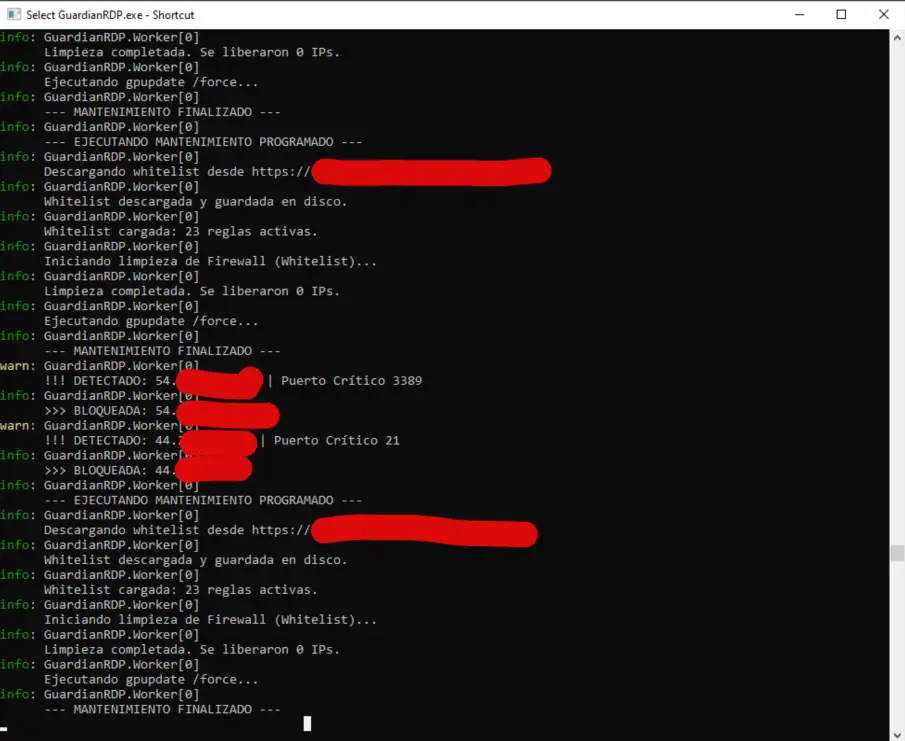
Strict ports (PORTS in the config) block on the very first connection. The reasoning is simple: on a port like RDP, any connection from an unknown IP is suspicious. There's no point waiting for the login to fail. If you're not on the whitelist and you're touching port 3389, goodbye.
Web ports (WEB_PORTS) use a threshold of simultaneous connections. A normal user doesn't open thirty simultaneous connections to your web server. A scanner or a low-intensity DDoS does. The default limit is 30; if an IP goes over that number of simultaneous connections, it gets blocked.
Queueing and blocking are deliberately decoupled. QueueBlock adds the IP to the local cache and to the channel; ProcessBlockingQueueAsync consumes that channel in a separate task. That way, if the firewall is slow to respond, the monitoring loop doesn't stall.
private async Task QueueBlock(string ip, string reason)
{
    if (_localBlockCache.Contains(ip)) return;

    _logger.LogWarning("DETECTADO: {Ip} | {Reason}", ip, reason);
    _localBlockCache.Add(ip);
    await _pendingBlocks.Writer.WriteAsync(ip);
}

private async Task ProcessBlockingQueueAsync(CancellationToken token)
{
    // ReadAllAsync waits for new items and delivers them one at a time
    await foreach (var ip in _pendingBlocks.Reader.ReadAllAsync(token))
    {
        // Double-check: in case the whitelist was updated while the IP
        // was waiting in the queue
        if (!_whitelist.IsWhitelisted(ip))
        {
            _firewall.BlockIp(ip);
        }
    }
}
06 — The Windows Firewall API
Windows Firewall has a programming API you can use from any language that supports COM. COM (Component Object Model) is an old Microsoft technology for communication between software components; it's still the standard way to control the Windows firewall from code without shelling out to external commands.
In .NET you can use COM through late binding with dynamic: we ask Windows for an instance of the COM object by its program identifier (ProgID), and from there we call its methods and properties as if it were a regular object. It's not the most elegant thing in the world, but it works and needs nothing installed.
public class FirewallManager
{
    private readonly ILogger _logger;
    private readonly string _allMonitoredPorts;
    private const string RulePrefix = "AutoBlock_Guardian_";
    private const int MaxIpsPerRule = 200;

    private dynamic? _fwPolicy2;

    public FirewallManager(ILogger logger, string allMonitoredPorts)
    {
        _logger = logger;
        _allMonitoredPorts = allMonitoredPorts;

        // Instantiate the Windows Firewall COM object
        Type? type = Type.GetTypeFromProgID("HNetCfg.FwPolicy2");
        if (type != null)
            _fwPolicy2 = Activator.CreateInstance(type);
    }

    public bool BlockIp(string ipToBlock)
    {
        if (_fwPolicy2 == null) return false;

        try
        {
            // lock: avoids races if several threads call BlockIp at once
            lock (_fwPolicy2)
            {
                dynamic rule = GetOrCreateRule();
                string current = rule.RemoteAddresses;

                // Skip if it's already there
                if (current.Contains(ipToBlock)) return true;

                rule.RemoteAddresses = (current == "" || current == "*")
                    ? ipToBlock
                    : current + "," + ipToBlock;
            }

            _logger.LogInformation("BLOQUEADA: {Ip}", ipToBlock);
            return true;
        }
        catch (Exception ex)
        {
            _logger.LogError("Error bloqueando {Ip}: {Msg}", ipToBlock, ex.Message);
            return false;
        }
    }
}
Firewall rules don't accept an unlimited number of IPs. The code groups blocked IPs into batches of 200 at most: if the last rule is full, it creates a new one. The rules are named AutoBlock_Guardian_001, AutoBlock_Guardian_002, and so on, which makes them easy to identify and clean up by hand if needed.
private dynamic GetOrCreateRule()
{
    int maxIndex = 0;
    dynamic? lastRule = null;

    // Find the last existing rule
    foreach (dynamic rule in _fwPolicy2.Rules)
    {
        string name = rule.Name;
        if (!name.StartsWith(RulePrefix)) continue;

        if (int.TryParse(name.Replace(RulePrefix, ""), out int idx))
        {
            if (idx >= maxIndex)
            {
                maxIndex = idx;
                lastRule = rule;
            }
        }
    }

    // If the last rule has room, reuse it
    if (lastRule != null)
    {
        string remote = lastRule.RemoteAddresses;
        int count = string.IsNullOrEmpty(remote) ? 0 : remote.Split(',').Length;
        if (count < MaxIpsPerRule) return lastRule;
    }

    // If there are no rules or the last one is full, create a new one
    return CreateNewBlockRule(maxIndex + 1);
}

private dynamic CreateNewBlockRule(int index)
{
    string ruleName = $"{RulePrefix}{index:000}";

    Type? tRule = Type.GetTypeFromProgID("HNetCfg.FwRule");
    dynamic rule = Activator.CreateInstance(tRule!)!;

    rule.Name        = ruleName;
    rule.Description = $"GuardianRDP bloqueo automático lote {index}";
    rule.Protocol    = 6;                      // TCP
    rule.LocalPorts  = _allMonitoredPorts;     // Only the monitored ports
    rule.Direction   = 1;                      // Inbound
    rule.Action      = 0;                      // Block
    rule.Enabled     = true;
    rule.InterfaceTypes = "All";

    _fwPolicy2.Rules.Add(rule);

    _logger.LogInformation("Nueva regla creada: {Name}", ruleName);
    return rule;
}
One advantage of using the API directly instead of shelling out to netsh or PowerShell is that changes are immediate: as soon as a rule's RemoteAddresses property is modified, the firewall applies the block. There's no need to wait for a script to finish running.
07 — The whitelist and IP ranges
The whitelist is the listaBlanca.txt file. It's a plain text file you can edit by hand, and the service reloads it automatically. Lines starting with # are ignored as comments.
It supports three formats:
- Individual IP:
203.0.113.5 - Range:
192.168.1.1-192.168.1.255— every IP between those two, inclusive. - CIDR notation:
79.116.0.0/16— a network block expressed as a base IP plus a prefix length. CIDR (Classless Inter-Domain Routing) is the standard notation for defining IP ranges on networks. The/16means the first 16 bits of the address are the network part (the first two octets), and the 65,536 possible values of the last 16 bits are all hosts on that network. Many internet providers assign large blocks to their customers, and CIDR is the compact way of expressing them.
Example listaBlanca.txt:
# My ISP's range
79.116.0.0/16

# My cloud server (static IP)
203.0.113.5

# Office LAN
192.168.1.1-192.168.1.255

# Siempre incluir localhost
127.0.0.1
To check whether an IP falls inside a range, the code converts every IP to a large integer. An IPv4 address is really a 32-bit number: the four octets are the four bytes of that number. 192.168.1.1 is 3232235777 in decimal. Checking whether an IP is inside a range then just means checking whether that number falls between two values — a very fast operation.
The code uses BigInteger instead of int or long for safety: an IPv4 address fits in a 32-bit uint, but BigInteger makes it possible to add IPv6 support in the future without changing the comparison logic, and it avoids sign issues with numbers whose most significant bit is 1 (high IPs like 255.x.x.x).
public class WhitelistManager
{
    private readonly ILogger _logger;
    private readonly string _filePath;
    private readonly HttpClient _httpClient = new();

    // Every range is stored as a (start, end) pair of BigInteger
    private List<(BigInteger Start, BigInteger End)> _ranges = new();

    public void Load()
    {
        _ranges.Clear();

        if (!File.Exists(_filePath))
            File.WriteAllText(_filePath, "# Lista blanca vacía\n127.0.0.1\n");

        foreach (var line in File.ReadAllLines(_filePath))
        {
            var clean = line.Split('#')[0].Trim();
            if (string.IsNullOrWhiteSpace(clean)) continue;

            try
            {
                if (clean.Contains('-'))
                {
                    // Range: 192.168.1.1-192.168.1.255
                    var parts = clean.Split('-');
                    _ranges.Add((
                        IpToNumber(IPAddress.Parse(parts[0].Trim())),
                        IpToNumber(IPAddress.Parse(parts[1].Trim()))
                    ));
                }
                else if (clean.Contains('/'))
                {
                    // CIDR: 79.116.0.0/16
                    var parts = clean.Split('/');
                    _ranges.Add(CalculateCidrRange(
                        IPAddress.Parse(parts[0].Trim()),
                        int.Parse(parts[1].Trim())
                    ));
                }
                else
                {
                    // Individual IP
                    var n = IpToNumber(IPAddress.Parse(clean));
                    _ranges.Add((n, n));
                }
            }
            catch (Exception ex)
            {
                _logger.LogWarning("Línea de lista blanca inválida '{Line}': {Msg}", line, ex.Message);
            }
        }

        _logger.LogInformation("Lista blanca cargada: {Count} rangos activos.", _ranges.Count);
    }

    public bool IsWhitelisted(IPAddress ip)
    {
        var n = IpToNumber(ip);
        foreach (var (start, end) in _ranges)
            if (n >= start && n <= end) return true;
        return false;
    }

    public bool IsWhitelisted(string ipString) =>
        IPAddress.TryParse(ipString, out var ip) && IsWhitelisted(ip);

    private BigInteger IpToNumber(IPAddress ip)
    {
        // GetAddressBytes() returns the bytes in network order (big-endian):
        // for 192.168.1.1 it returns [192, 168, 1, 1]
        byte[] originalBytes = ip.GetAddressBytes();

        // The BigInteger(byte[]) constructor expects little-endian, so we reverse it
        Array.Reverse(originalBytes);

        // We append a 0 byte at the end (which after the reverse ends up at the start
        // in big-endian representation) to guarantee BigInteger treats it
        // as a positive number even if the most significant bit is 1
        byte[] unsignedBytes = new byte[originalBytes.Length + 1];
        Array.Copy(originalBytes, 0, unsignedBytes, 0, originalBytes.Length);

        return new BigInteger(unsignedBytes);
    }

    private (BigInteger Start, BigInteger End) CalculateCidrRange(IPAddress ip, int prefix)
    {
        int totalBits = ip.GetAddressBytes().Length * 8;   // 32 for IPv4
        BigInteger ipNum = IpToNumber(ip);

        // Netmask: 1s across the first `prefix` bits
        BigInteger mask = BigInteger.Pow(2, totalBits) - BigInteger.Pow(2, totalBits - prefix);

        BigInteger start = ipNum & mask;
        BigInteger end   = start + BigInteger.Pow(2, totalBits - prefix) - 1;

        return (start, end);
    }
}
The UpdateFromUrlAsync method downloads the whitelist from a remote URL and saves it to disk, overwriting the previous one. This lets you keep a centralised list on a web server: if you add a new IP to the remote list, the service will pick it up on the next maintenance cycle without you having to connect to the protected server.
public async Task UpdateFromUrlAsync(string url)
{
    try
    {
        _logger.LogInformation("Descargando lista blanca desde {Url}...", url);
        string content = await _httpClient.GetStringAsync(url);

        if (!string.IsNullOrWhiteSpace(content))
        {
            await File.WriteAllTextAsync(_filePath, content);
            Load();   // Recargar en memoria
        }
    }
    catch (Exception ex)
    {
        _logger.LogError("Error descargando lista blanca: {Msg}", ex.Message);
        // If the download fails, carry on with the copy already on disk
    }
}
08 — Automatic maintenance
Every 60 minutes the Worker runs a four-step maintenance cycle:
- Downloads the updated whitelist from the remote URL. If the download fails, it keeps the local copy.
- Cleans up the firewall rules: it goes through every blocked IP and removes the ones that are now on the whitelist. This matters if, say, an internet provider changes the IP range it assigns to its customers and a legitimate IP ends up blocked. It frees itself on the next maintenance cycle.
- Clears the local cache: the
HashSetthat stops already-queued IPs from being reprocessed gets wiped. This lets IPs that were in the cache (for instance, because they weren't on the whitelist before) get re-evaluated against the updated list. - Runs
gpupdate /force: forces a Windows Group Policy update. In domain environments, group policies can override local firewall rules; this step makes sure GuardianRDP's rules don't get wiped out by a domain policy that hadn't applied yet.
private async Task PerformMaintenanceAsync()
{
    _logger.LogInformation("Iniciando mantenimiento programado...");

    // 1. Actualizar lista blanca
    await _whitelist.UpdateFromUrlAsync(_whitelistUrl);

    // 2. Clean the firewall: drop IPs that are now trusted
    _firewall.CleanWhitelistedIps(_whitelist);

    // 3. Flush the local cache
    _localBlockCache.Clear();

    // 4. Force a Group Policy refresh (handy in domain environments)
    try
    {
        Process.Start(new ProcessStartInfo("gpupdate", "/force")
        {
            CreateNoWindow  = true,
            UseShellExecute = false
        });
    }
    catch (Exception ex)
    {
        _logger.LogError("Error ejecutando gpupdate: {Msg}", ex.Message);
    }

    _logger.LogInformation("Mantenimiento completado.");
}
The firewall cleanup also handles emptied-out rules. When every IP in a rule ends up on the whitelist, the rule empties out and could in principle be deleted, but the Windows Firewall API sometimes errors out when you try to delete a rule with an empty RemoteAddresses, so it's simply left empty and harmless.
// En FirewallManager.cs
public void CleanWhitelistedIps(WhitelistManager whitelist)
{
    if (_fwPolicy2 == null) return;

    int removedCount = 0;

    foreach (dynamic rule in _fwPolicy2.Rules)
    {
        if (!((string)rule.Name).StartsWith(RulePrefix)) continue;

        string remoteAddresses = rule.RemoteAddresses;
        if (string.IsNullOrWhiteSpace(remoteAddresses) || remoteAddresses == "*") continue;

        var ips = remoteAddresses.Split(',');
        var validIps = new List<string>();
        bool modified = false;

        foreach (var ip in ips)
        {
            if (whitelist.IsWhitelisted(ip.Trim()))
            {
                removedCount++;
                modified = true;
                _logger.LogInformation("Desbloqueando IP ahora en lista blanca: {Ip}", ip);
            }
            else
            {
                validIps.Add(ip);
            }
        }

        if (modified)
            rule.RemoteAddresses = validIps.Count > 0 ? string.Join(",", validIps) : "";
    }

    _logger.LogInformation("Limpieza completada: {Count} IPs liberadas.", removedCount);
}
09 — Building and installing
The project is a self-contained executable for Windows x64: it bundles the .NET runtime inside the executable itself, so there's no need to install .NET on the target server. You do need the .NET 8 SDK on the machine where you build it.
Build and publish:
dotnet restore
dotnet publish -c Release -o C:\GuardianRDP
This leaves the executable and the configuration files in C:\GuardianRDP. Before installing the service, edit config.txt and listaBlanca.txt with your own values. Important: add your IP to the whitelist before switching the service on — otherwise you'll block yourself the moment you connect over RDP.
Contents of config.txt:
# Puertos ESTRICTOS: se bloquea al primer intento
# Standard RDP=3389, FTP=21, NetBIOS=135/139
# If you use a non-standard RDP port, add it here too
PORTS=3389,21,135,139

# WEB ports: blocked when MAX_WEB_CONNECTIONS simultaneous connections are exceeded
WEB_PORTS=80,443
MAX_WEB_CONNECTIONS=30

# Milliseconds between checks (100ms = 10 times per second)
INTERVAL=100

# Download URL for the whitelist (refreshed every 60 minutes)
# If you don't use this feature, point it at a file holding your own list
WHITELIST_URL=https://tudominio.es/listaBlanca.txt
Installing and starting the Windows service:
sc create "GuardianRDP" binPath= "C:\GuardianRDP\GuardianRDP.exe" start= auto
sc start GuardianRDP
sc create registers the executable as a Windows service with automatic startup. sc start launches it immediately without a reboot. From that point on, GuardianRDP starts automatically with the system and writes its activity to the Windows event viewer (Applications and Services Logs), which is where the .NET framework redirects a Windows Service's logs.
To stop and uninstall:
sc stop GuardianRDP
sc delete GuardianRDP
To see the firewall rules it has created, open Windows Firewall with Advanced Security (run wf.msc) and filter the inbound rules by the AutoBlock_Guardian_ prefix. From there you can delete rules by hand, export them, or just see how many IPs it has blocked so far.
The service needs to run under an account with administrator rights to be able to modify the firewall rules. Installing it with sc create without specifying an account makes it run as LocalSystem, which has those rights. If you'd rather use a specific service account, add obj= "DOMAIN\user" password= "password" to the create command.
An honest caveat: the active-TCP-connection detection system has a limit. If an attacker uses very short-lived connections that open and close in under 100 ms, the Worker might miss them. In practice, RDP brute-force attacks keep the connection open for several seconds while they negotiate the protocol, so the system catches them without trouble. But it's not infallible, and it isn't meant to be. It's meant to get the usual hammerers out of the way with the least maintenance possible.